

Export
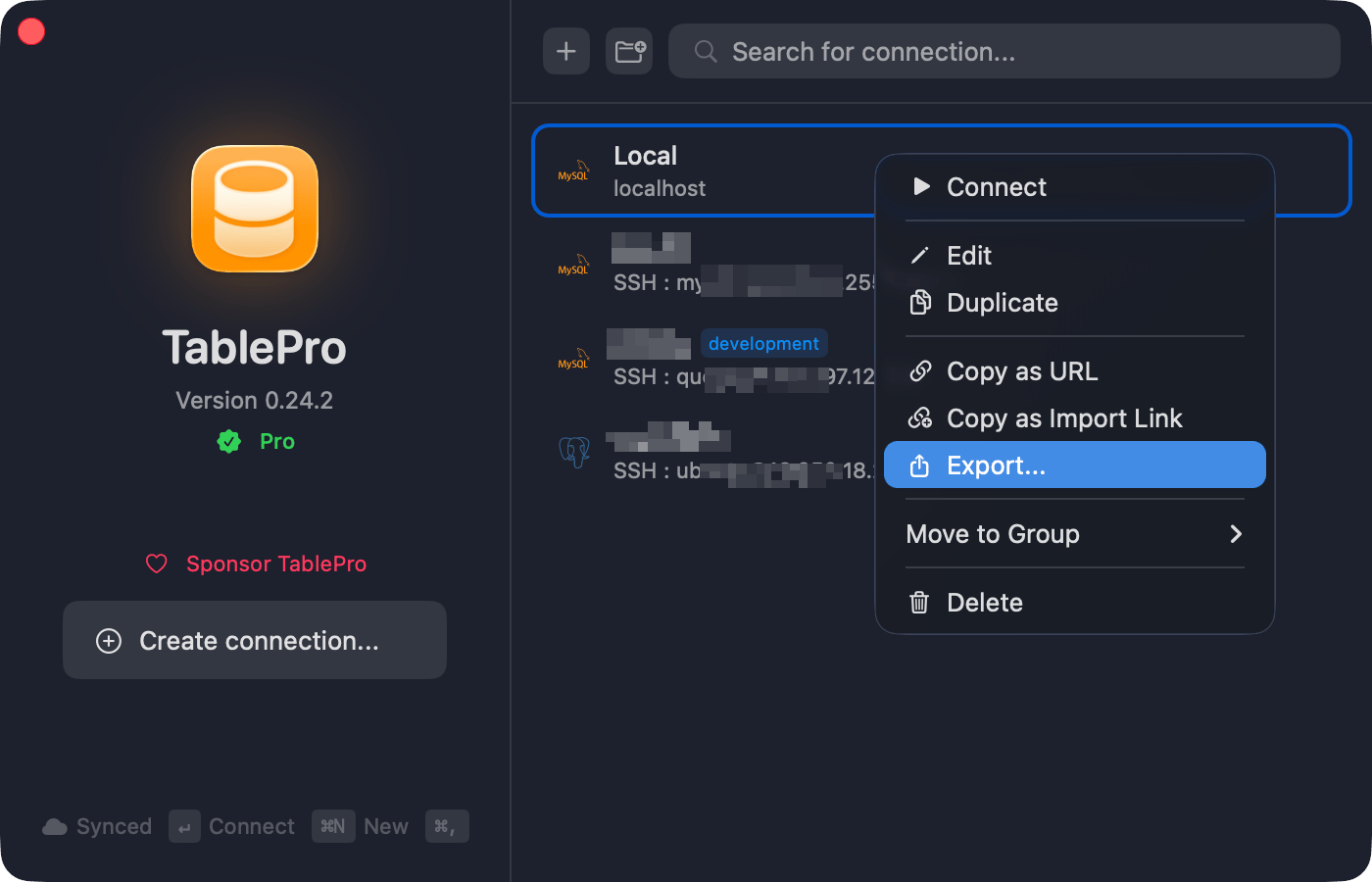
Right-click a connection > Share > Export to File…, selecting several first to export them together, or File > Export > Export Connections… for all of them. The file carries what the connection form holds, from host and port through SSH and SSL configuration, color, icon, tags, the full group path, Safe Mode level, startup commands, AI policy, the Local only flag, and any driver field the plugin does not mark secret. Passwords, key passphrases, TOTP secrets, and secret driver fields stay behind.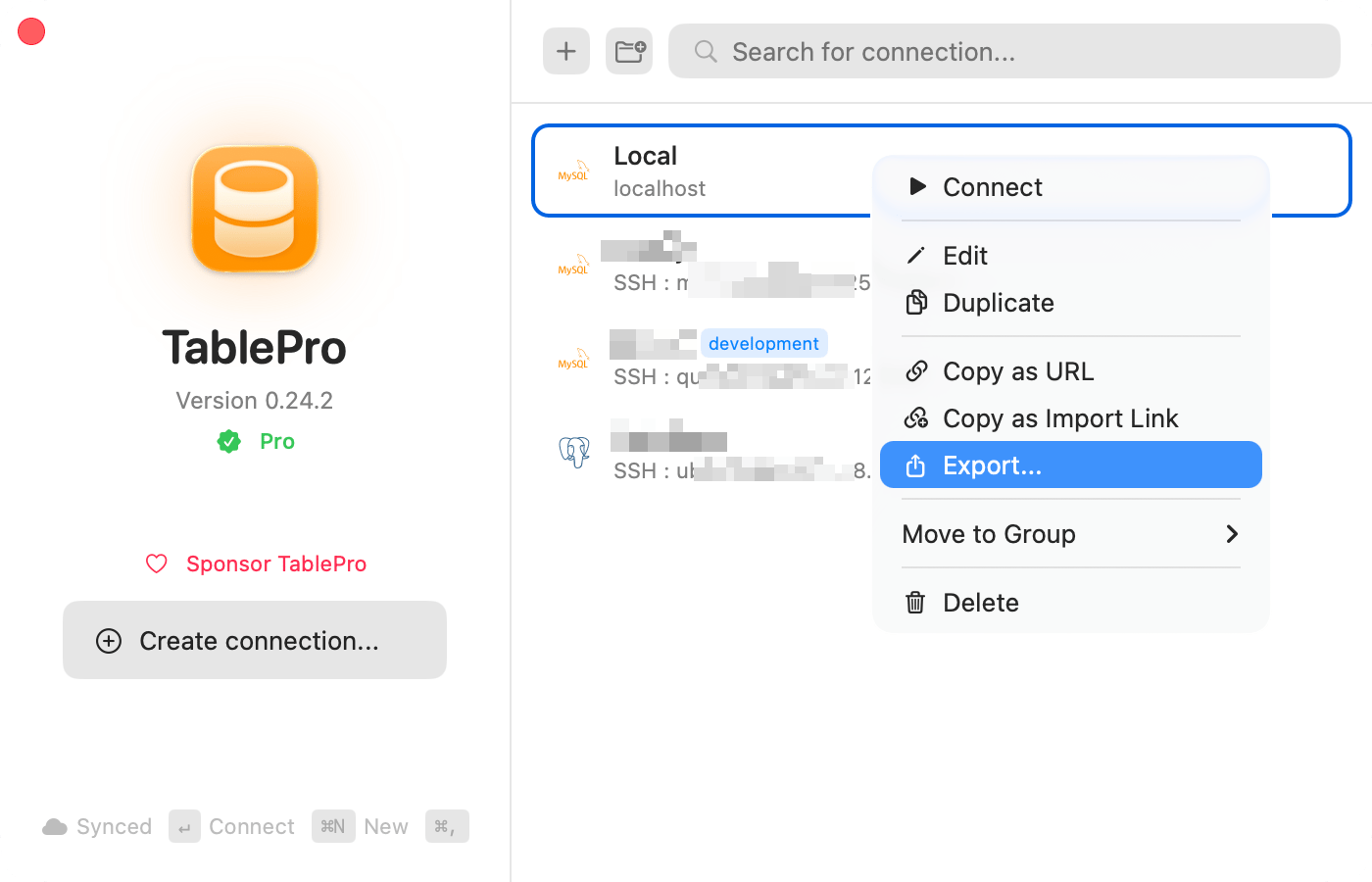
Export connections
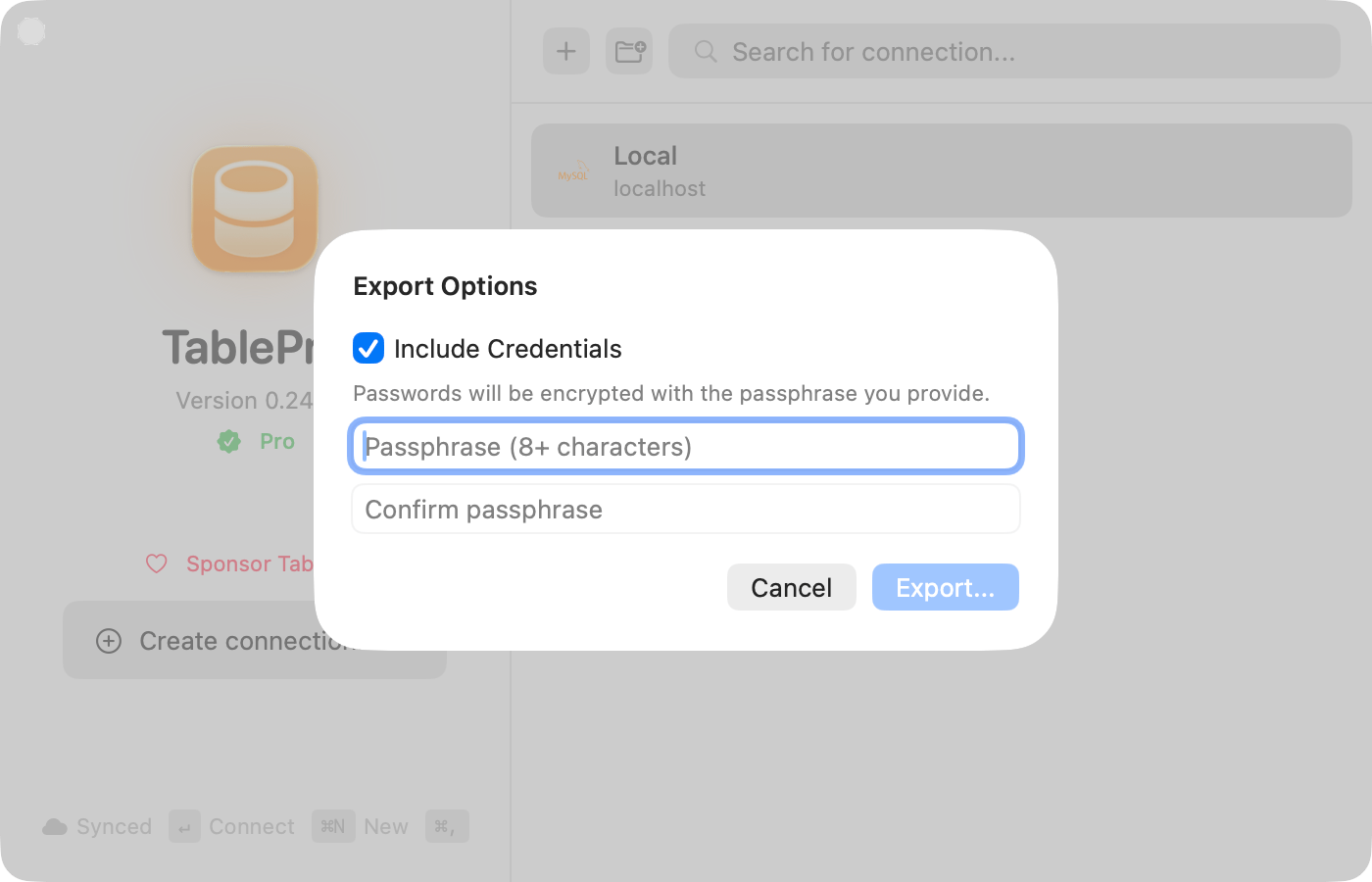
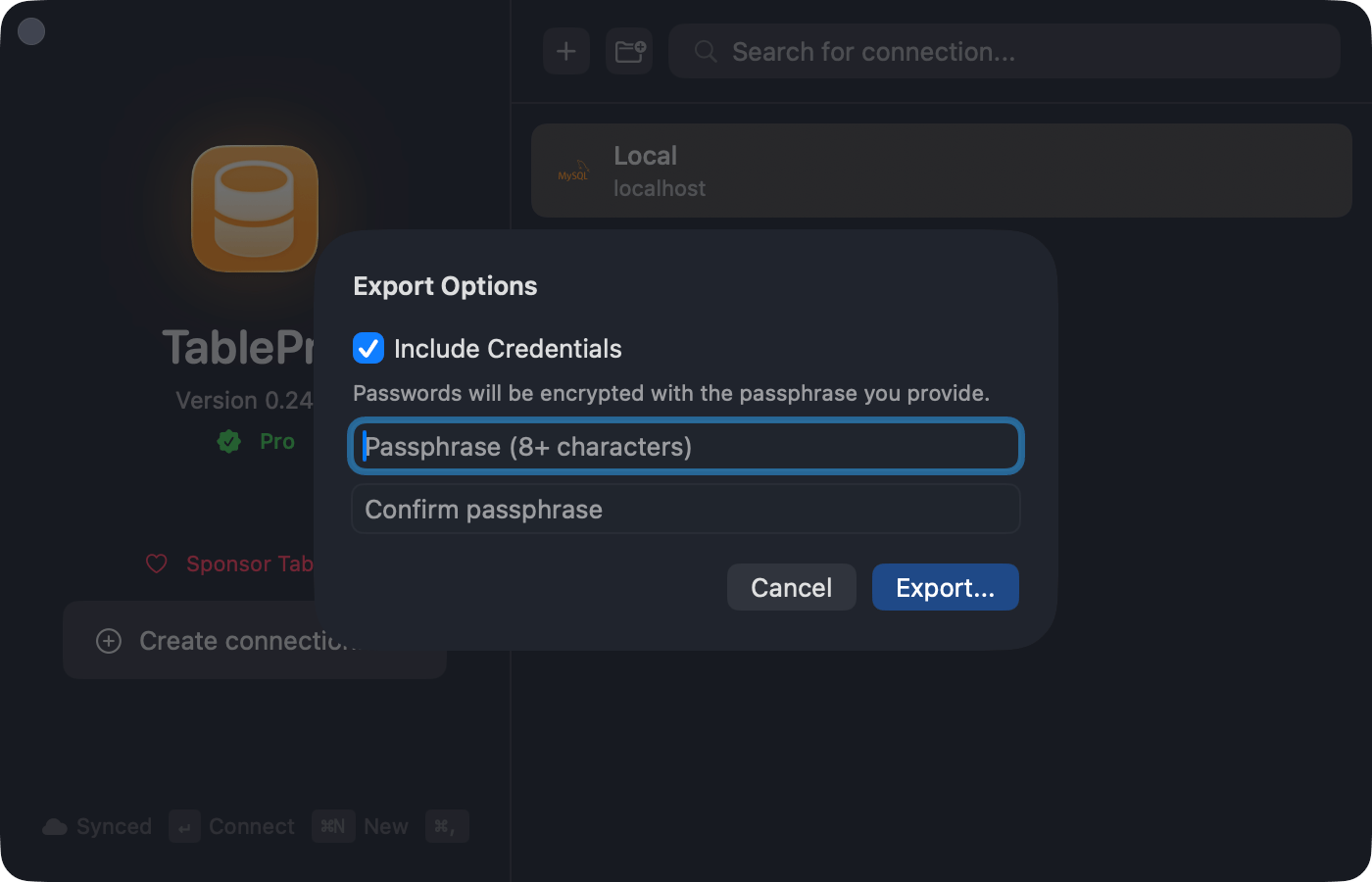
The saved query options appear only when there are saved queries to export, and they need no license. Saved queries are written as readable text unless Include Credentials encrypts the file. Version history, linked SQL folders and Team Library queries are never exported.
Encrypted export
Needs a Starter license.
Encrypted export
Import
Open a.tablepro file through File > Import > Import Connections…, by right-clicking the empty area of the connection list, by double-clicking the file, or by dragging it onto TablePro. File > Import > Import from URL… takes a database URL instead, described in Connection URLs.
A review lists the connections, then the saved queries, before anything is saved. The checkbox in each section header selects or deselects the whole section. A green checkmark marks a connection ready; a yellow triangle marks a missing SSH key or certificate, or an SSL mode TablePro does not recognize, which imports as Required. A “duplicate” tag marks one already in your library, with the name it matches.
Duplicates match by host, port, database, and username, and start deselected. Select one, then choose what happens to it:
A duplicate that carries saved queries starts on Keep Existing, Add Queries; any other duplicate starts on As Copy. To skip a connection, deselect it.
Each saved query shows its connection, or All connections for a global one, and its folder path. A query whose connection is deselected cannot be selected. A query you already have is tagged “already saved” and stays deselected: same name, same SQL, and the same connection, or global in both places. A note on the row says what else changes:
Group and folder paths match by name from the top down: an existing group or folder is reused, and a missing one is created. A created group takes the file’s color and icon; an existing one keeps its own. Only the groups, tags, and credential profiles that added or replaced connections use are created.
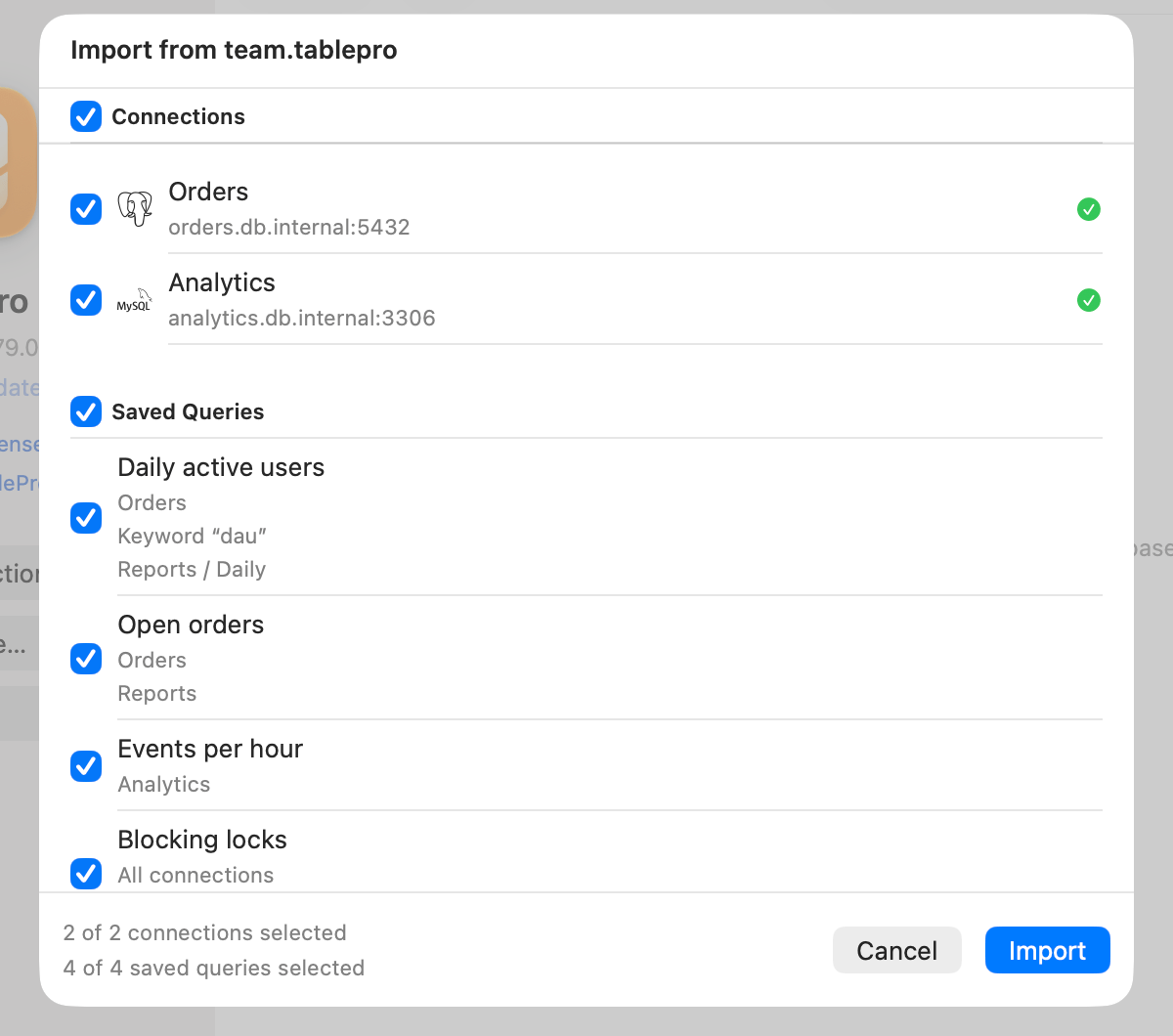
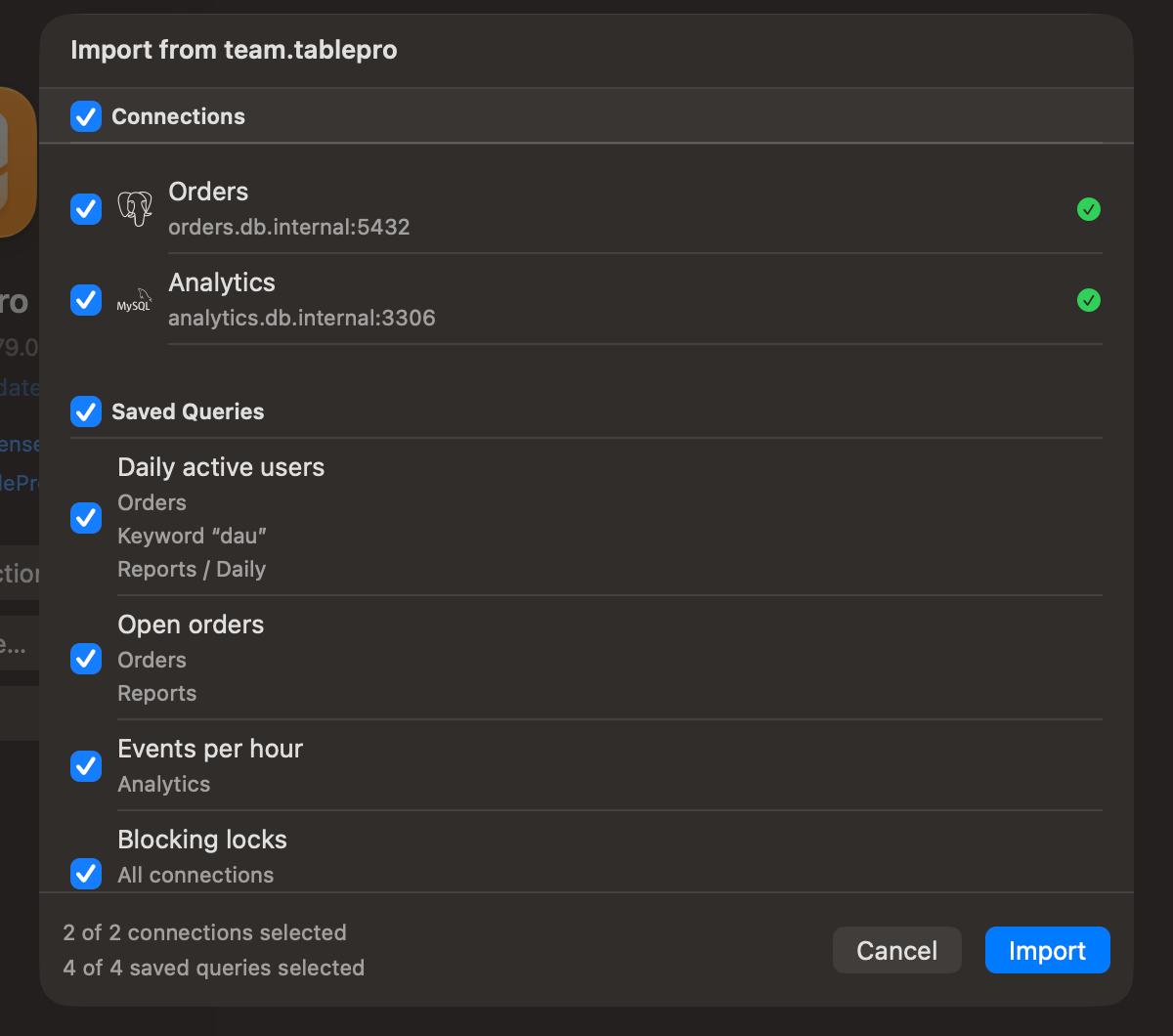
Import preview
Share via link
Share > Copy TablePro Link produces atablepro://import?… URL with the name, host, port, type, username, database, and any SSH or SSL settings. The recipient opens it, reviews the prefilled form, adds a password, and saves.
tablepro://connect/<uuid> opens a saved connection rather than importing one. No menu item builds it; see URL Scheme.
Import from other apps
Choose File > Import > Import from Other App…, pick the source, then review the list and resolve duplicates before clicking Import. Groups and folders carry over, and the source app does not have to be running. Leave Include saved queries selected to bring the source’s saved queries into the same review; the source list says how many it found.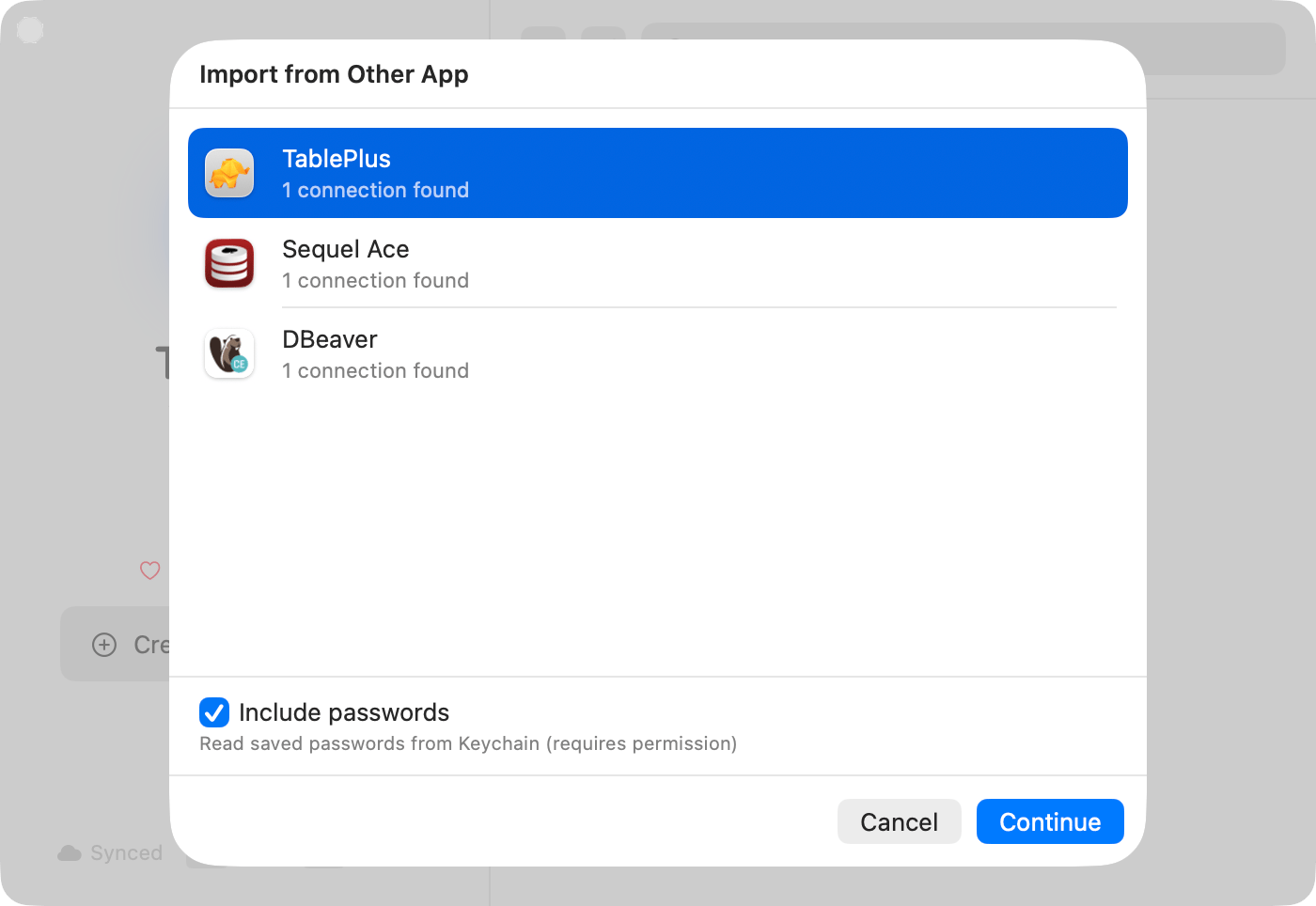
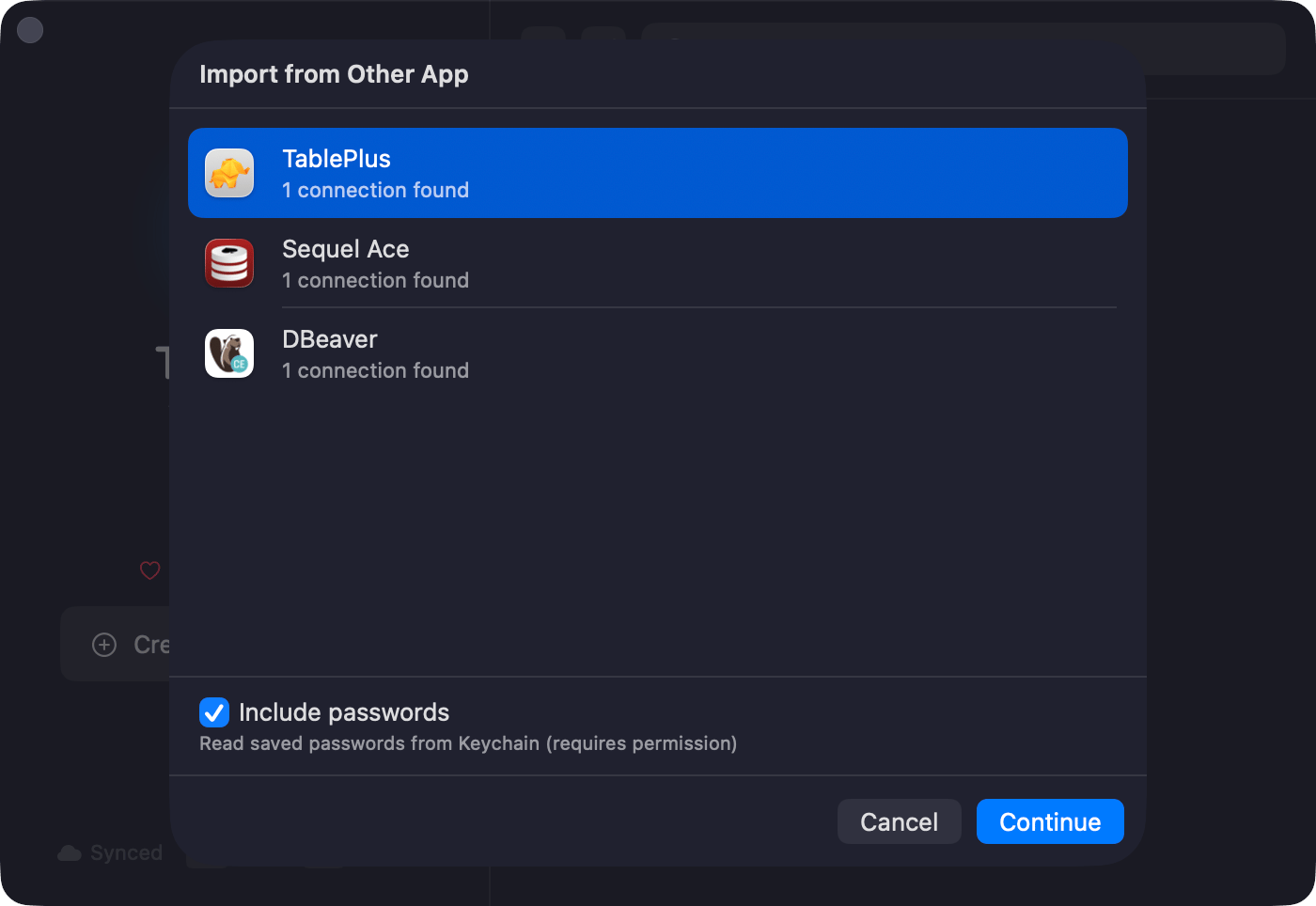
Pick the source app
Saved queries keep their folders inside the app’s folder. A query keeps one keyword: a Sequel Ace tab trigger, or the first keyword without spaces from a TablePlus favorite. A DBeaver script with no connection lands in a global folder named DBeaver. A script or console whose connection is not part of the import lands in a global DBeaver or DataGrip folder, deselected. Scripts and consoles that still carry the name the app gave them, such as
Script-3 or console_2, also start deselected. Empty files are skipped, and placeholders such as ${1:name} arrive as written.
Import from AWS
Choose File > Import > Import from AWS… to list the RDS instances and Aurora clusters an AWS profile can see, and import them with their endpoint, port, and engine already filled in. See AWS IAM Authentication.On iPhone
TablePro for iPhone reads and writes the same file. Tap the more menu (•••) above the connection list and choose Import Connections, or open a.tablepro file from Files or AirDrop. Export Connections shares through the system share sheet, leaving passwords out unless you turn on Include passwords and set a passphrase.
Groups nest on iPhone the way they do on the Mac. Saved queries do not: an iPhone import skips the ones in a file, and an iPhone export carries none, so a Mac file exported again from an iPhone loses its queries.
Linked Folders
Needs a Starter license.
Cmd+,, then Settings > General > Linked Folders > Add Folder… and point it at a directory of .tablepro files: a Git repo, a Dropbox folder, a network drive. Those connections appear read-only in the sidebar, and each person enters their own password.
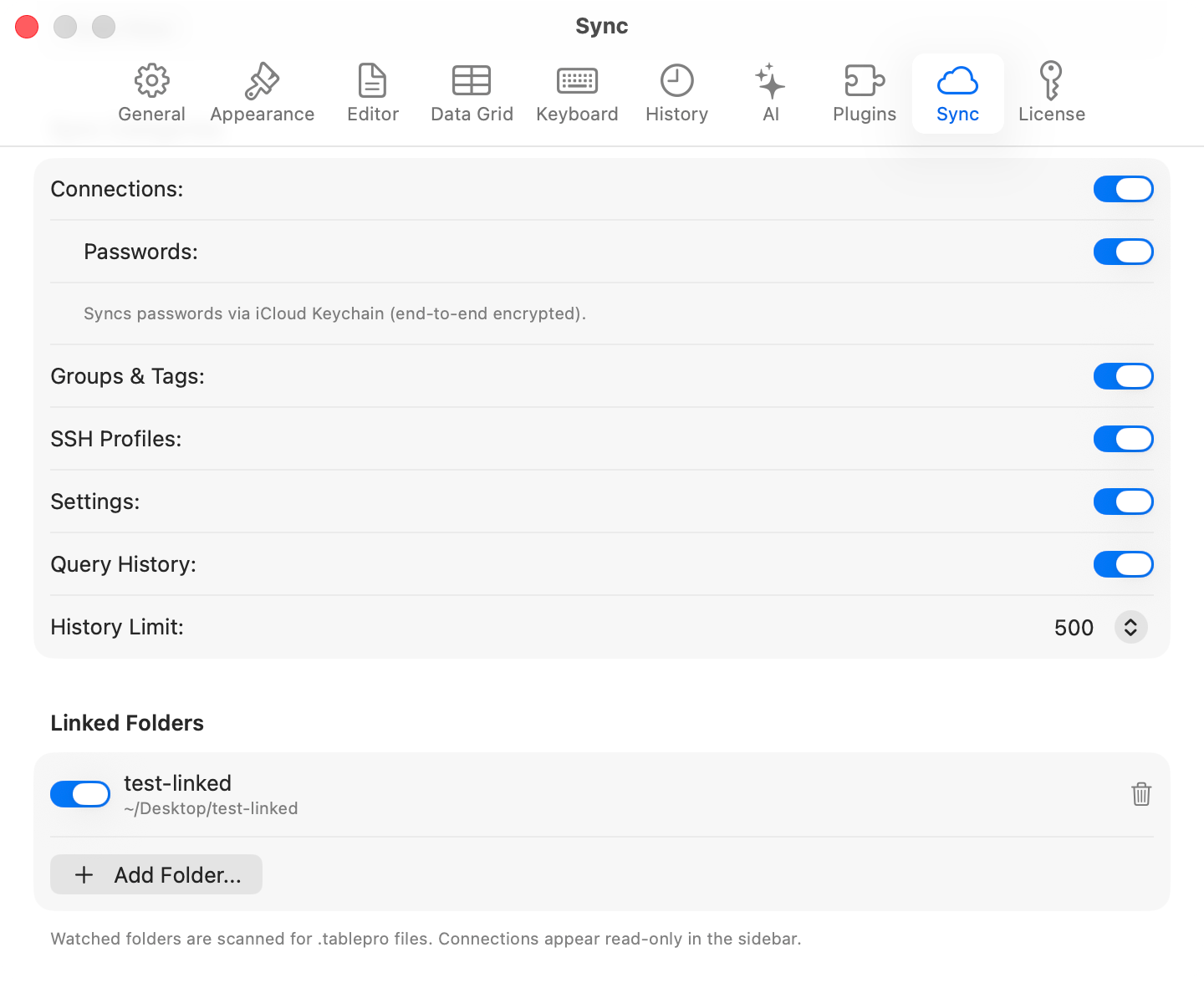
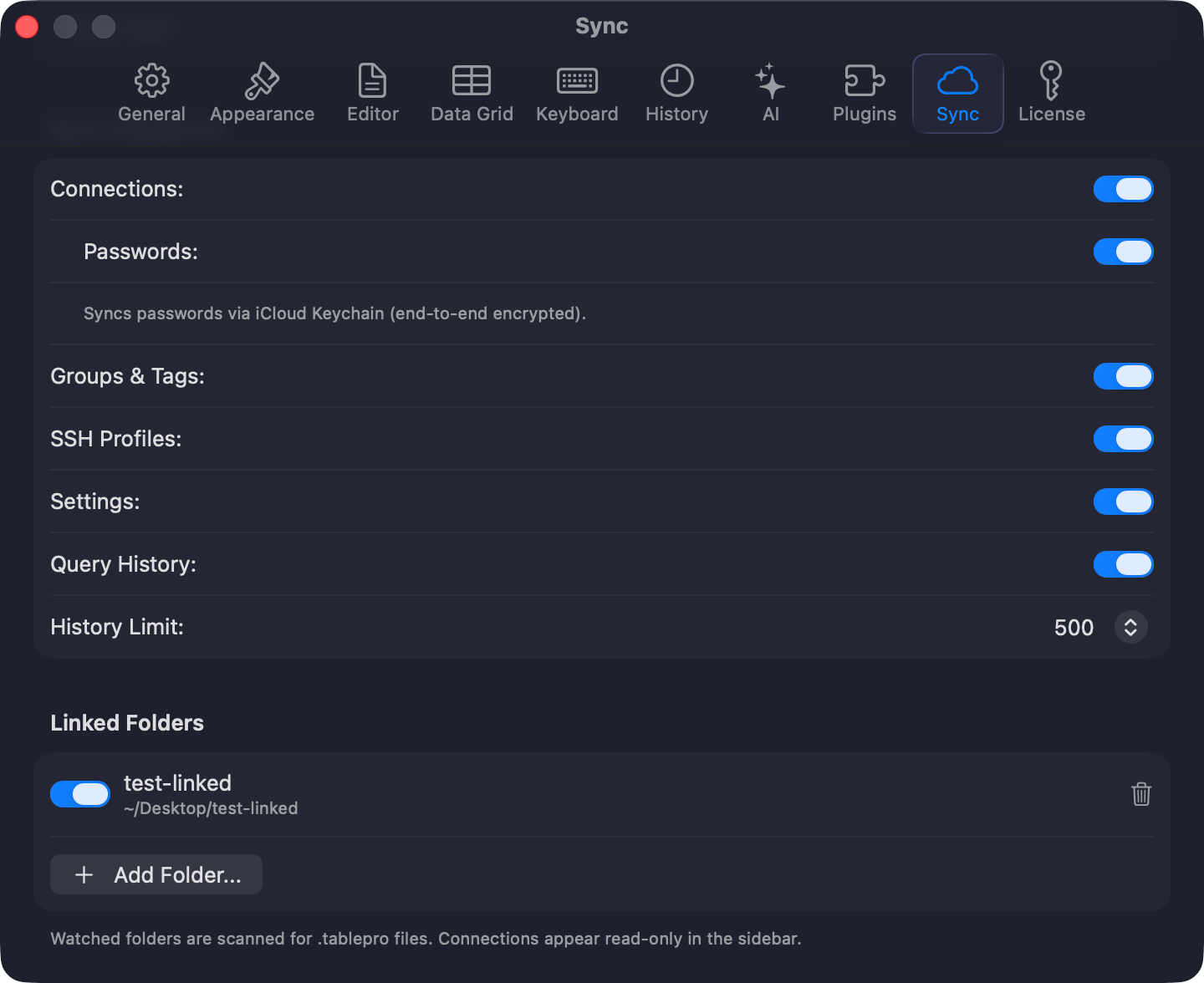
Linked Folders settings
Team Catalog
Needs a Team license.
.tablepro file into a shared folder, asking for the folder the first time. Republishing overwrites the file, and passwords, passphrases, TOTP secrets, and saved queries are never written. Teammates add that folder as a Linked Folder. An older TablePro skips these files, as File format explains.
Environment variables
Needs a Starter license.
$VAR or ${VAR} in a .tablepro file and it resolves from TablePro’s process environment at connect time. An app launched from the Dock inherits no shell exports, so set the variable with launchctl setenv NAME value or launch TablePro from a terminal.
Password sources
A connection in~/Library/Application Support/TablePro/connections.json can say where its password comes from instead of keeping one in the Keychain, which suits a script that provisions connections. The source resolves at connect time, replaces the Keychain lookup rather than supplementing it, and never syncs to iCloud. A source that fails to resolve fails the connection.
Every command gets 30 seconds. The three CLI kinds quote each argument, so a reference cannot break out into the shell, and they need the tool on
PATH, in /usr/local/bin, or in /opt/homebrew/bin.
Editing connections.json by hand costs one extra step. TablePro stamps the file when it writes it, and a file that changed underneath it fails the connect with “Your connections file was changed outside TablePro, so this connection’s password source was not run. Open the connection and save it again to confirm the change.” Save it once from the app and sources run again.
File format
JSON, at format version 2. A file needsformatVersion, exportedAt, appVersion, and connections. Each connection needs ref, name, host, port, database, username, and type, and an empty string is fine where a value does not apply. Paths use ~/ so they travel.
ref links records inside one file and means nothing outside it. Refs must be unique within each kind. A ref that points at nothing, or a parent chain that loops, fails the import with an error naming the ref.
Version 1 files still import. Their
groupName becomes a group at the top level of the library, and tagName or tagNames become tags. A TablePro version from before saved query export cannot open a version 2 file and reports that it needs a newer version; Linked Folders on such a version skip these files, Team Catalog ones included.